
Model Context Protocol

AI works best, when it understands both your tools and your current task.
With Business Central's new MCP Server and nunq's MCP support, you can now do exactly that:
The result: your AI assistant can "see" what the user is currently doing, call Business Central via MCP, and respond with context-aware ERP-data in one place.
Microsoft introduced support in Business Central at Directions EMEA last year, marking a major step towards open, standardized AI integrations with the ERP system. The announcement was shared publicly in .
The vision is to make Business Central a first-class participant in AI workflows through secure, reliable MCP tools that agents and orchestrators can seamlessly use and compose. The goal is to make all Business Central functionality available to AI and agents.
In other words: Business Central becomes a self-describing MCP service that AI can use to retrieve data and perform actions.
Of course, the Business Central MCP server is available to Microsoft Clients such as Copilot Studio – but now, we made it possible to also use it inside of nunq.
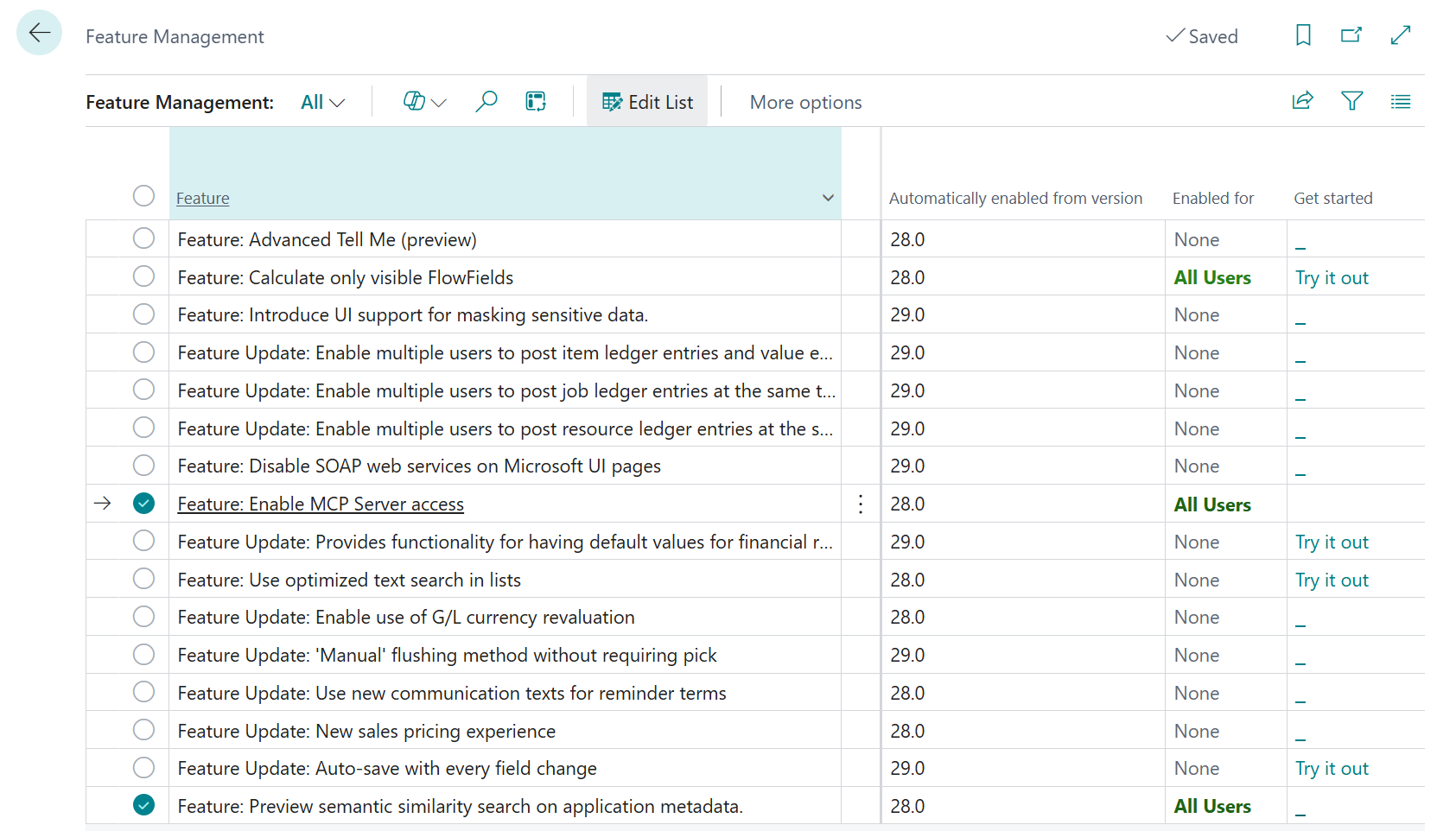
First, enable the MCP features in Business Central:
Then configure your MCP server:
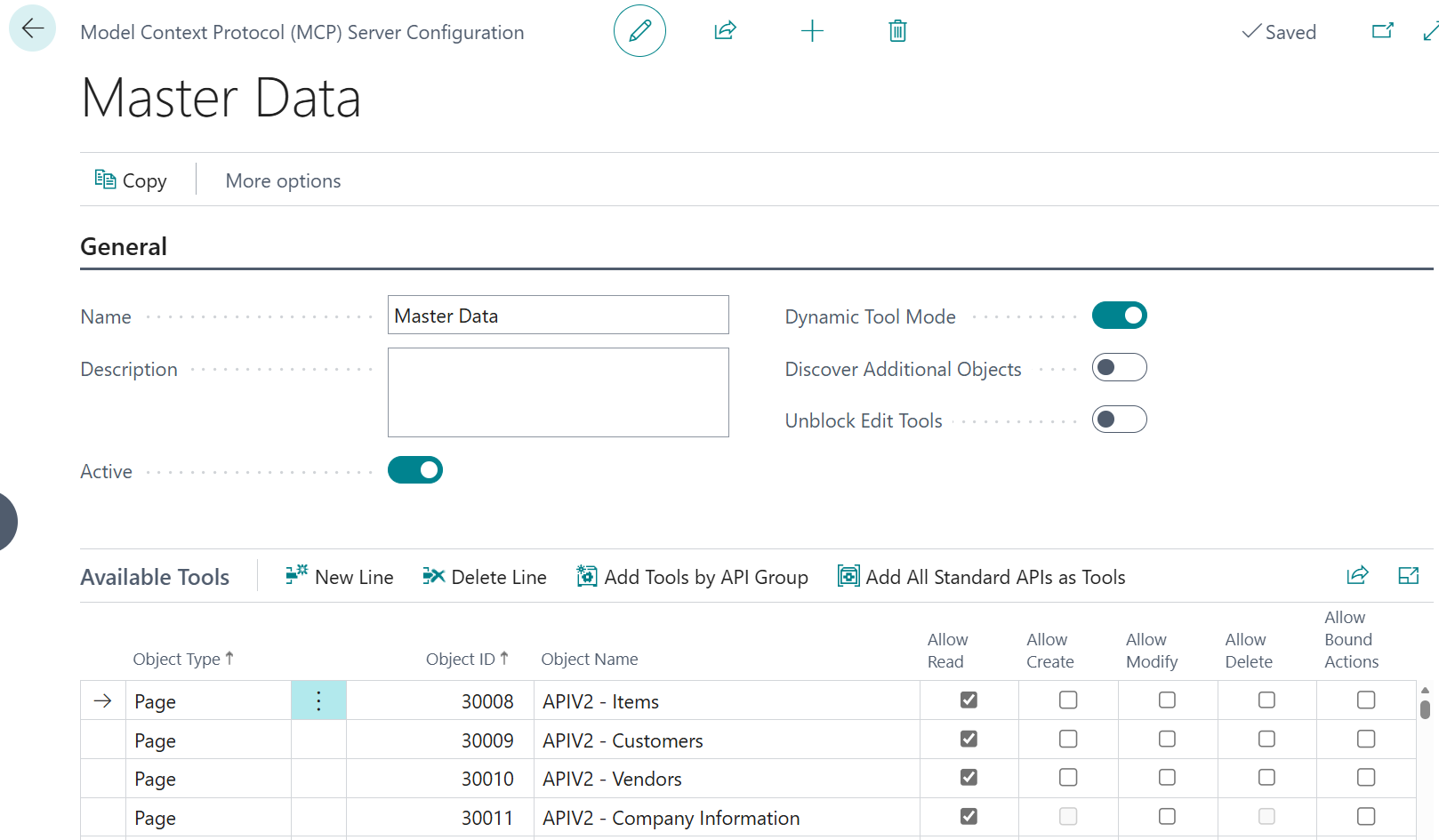
Once active, Business Central exposes your configuration as an MCP server that clients like nunq can connect to.
For detailed setup instructions, refer to .
In nunq, add Business Central as a remote MCP tool:
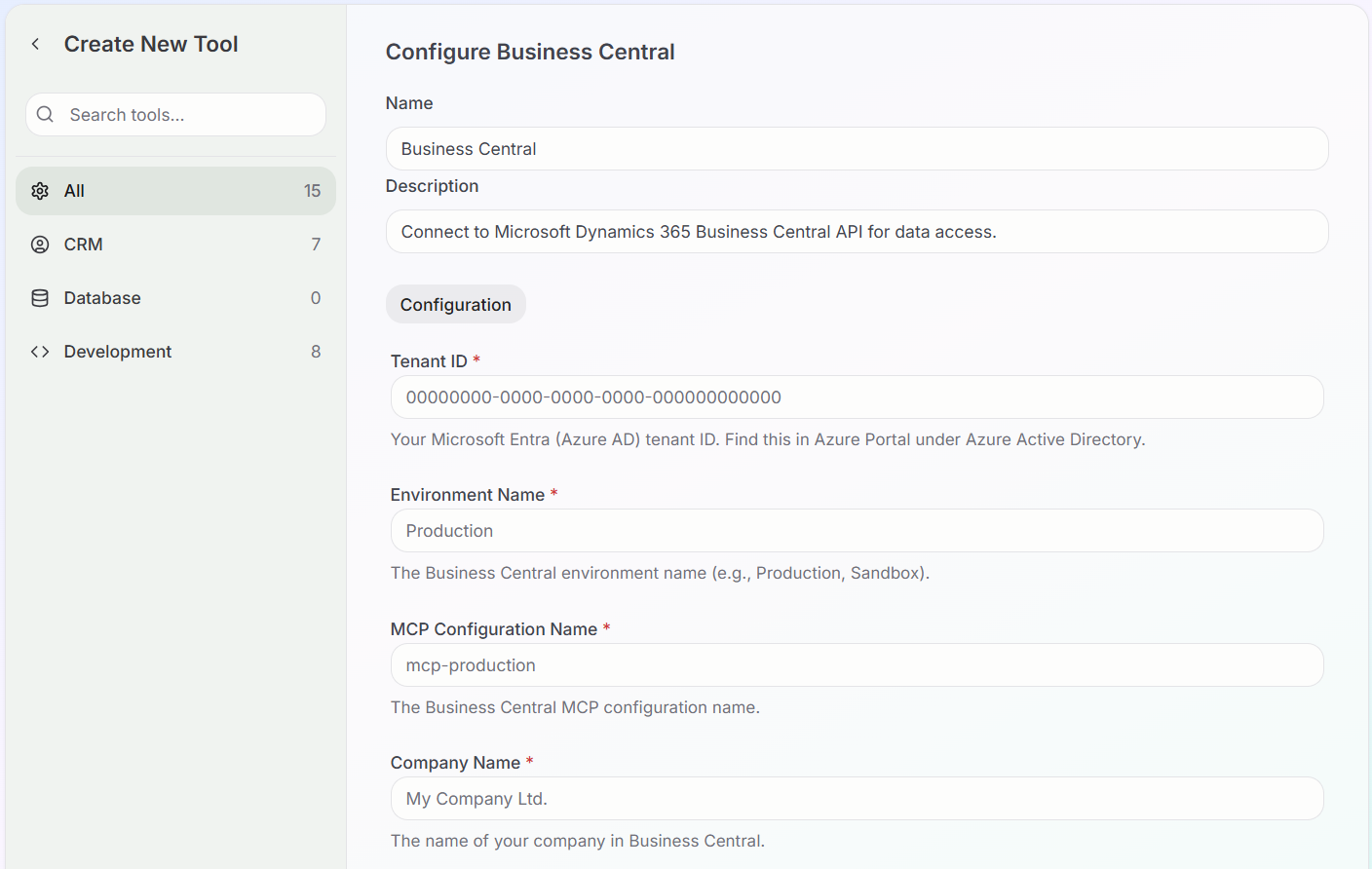
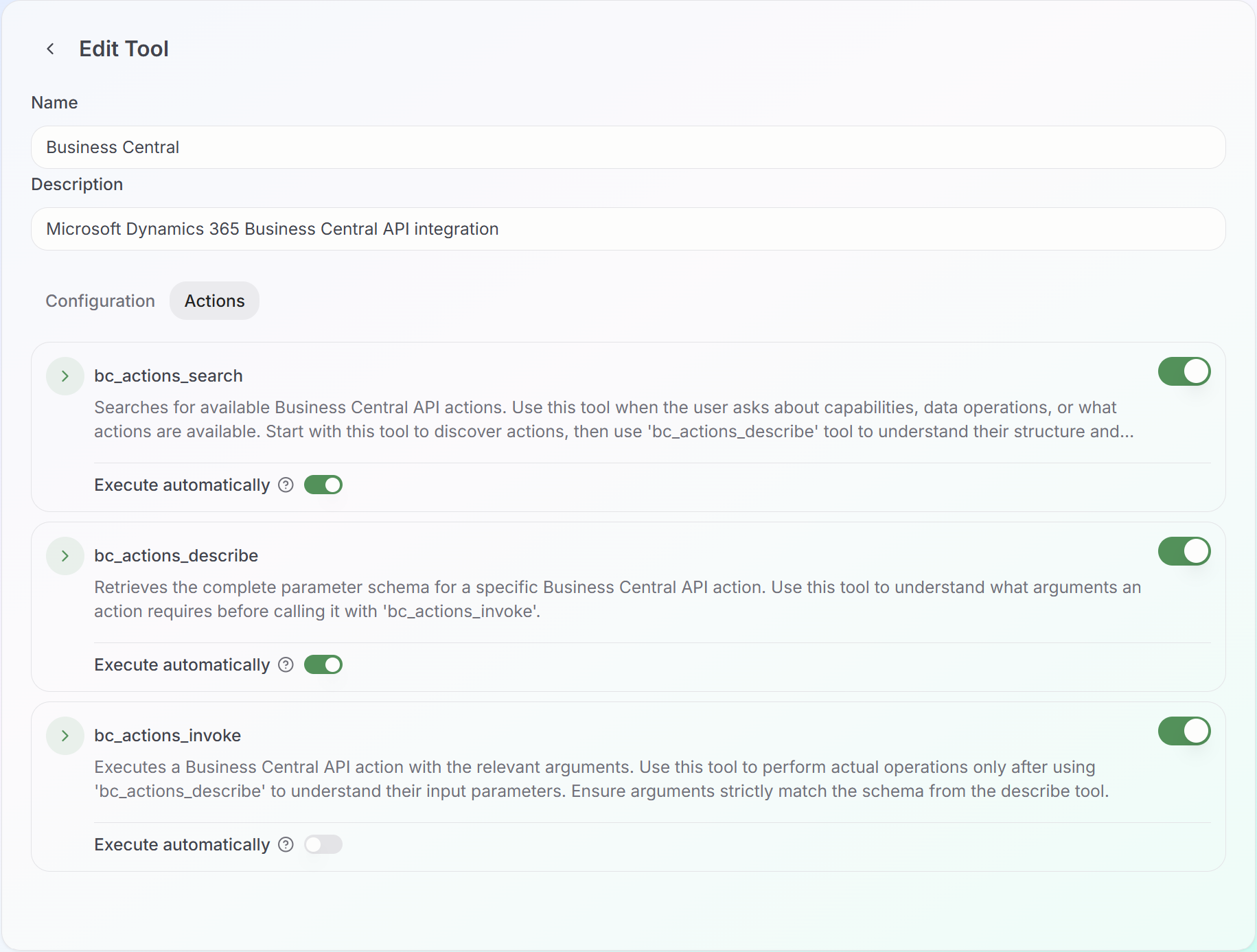
Once configured, you can optionally add other MCP servers (Jira, internal APIs, documentation) to give nunq a full view of your workflow.
When you open nunq, you can enable the Business Central tool by toggling it on in the tool selector. This makes the Business Central MCP actions available to the AI assistant.
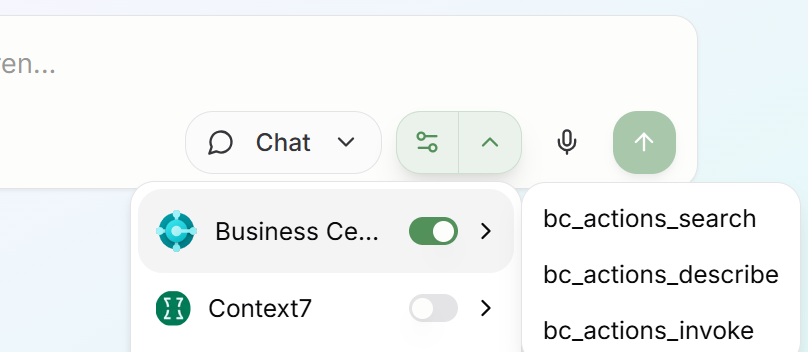
Now you can ask questions regarding your Business Central environment in natural language, and nunq will leverage the MCP tool to retrieve or and perform actions as needed.
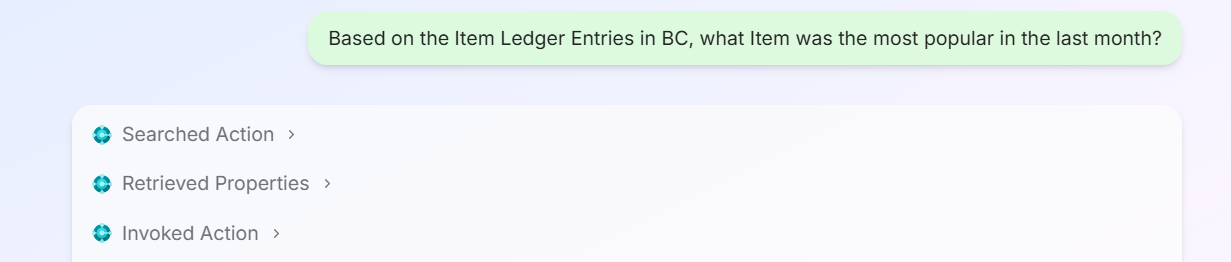
How the tool calls work:
When you ask a question like "Based on the Item Ledger Entries in BC, what Item was the most popular in the last month?", nunq orchestrates multiple MCP calls through a dynamic discovery process:
| Action | MCP Client (nunq) | Business Central |
|---|---|---|
| bc_actions_search | Pass keywords from your question | Semantic search to find top X relevant API tools/pages (e.g., Item Ledger Entries) |
| bc_actions_describe | Call describe for further info | Return full description + fields (schema, data types, filters, capabilities) |
| bc_actions_invoke | Call invoke passing filters | Return data from API page through OData protocol |
This intelligent orchestration happens automatically - you just ask your question in natural language, and nunq handles the technical details of discovering, understanding, and invoking the right Business Central APIs.
User views a customer card in Business Central and clicks nunq asking:
"What are the 5 most recent sales orders for this customer."
Back office staff works in a posted sales invoice list. They click nunq and type:
"For the invoice I have selected, check if there are any open delivery complaints and suggest a response to the customer."
Because nunq also integrates with tools like Jira, for example, from a Business Central error page, a user can ask:
"Create a Jira ticket with the error details and assign it to our support team."
By combining:
You get a contextual AI assistant that lives inside your existing workflows, not beside them.
Users keep working in Business Central (or any other app), tap nunq in the corner of their window, and get help that:
It's a practical step towards truly contextual ERP assistance – and a compelling way to bring AI into everyday Business Central work.
If you want to learn more, feel free to contact us at
